- Home
- Free guides
- Design
Canva Se Instagram Post Kaise Banaye? Canva for Beginners Step by Step
Search for "Instagram post" in Canva, pick a template, change the text, use only 2 fonts and 2–3 colours, keep one clear message, and download as PNG. That is your first professional-looking post.
- Search by what you are making – Canva sets the size for you.
- 2 fonts, 2–3 colours, 1 message.
- Check alignment, contrast, space and hierarchy before you post.
Canva for beginners is easier than it looks. You don't need design skills – just a template and four simple rules.
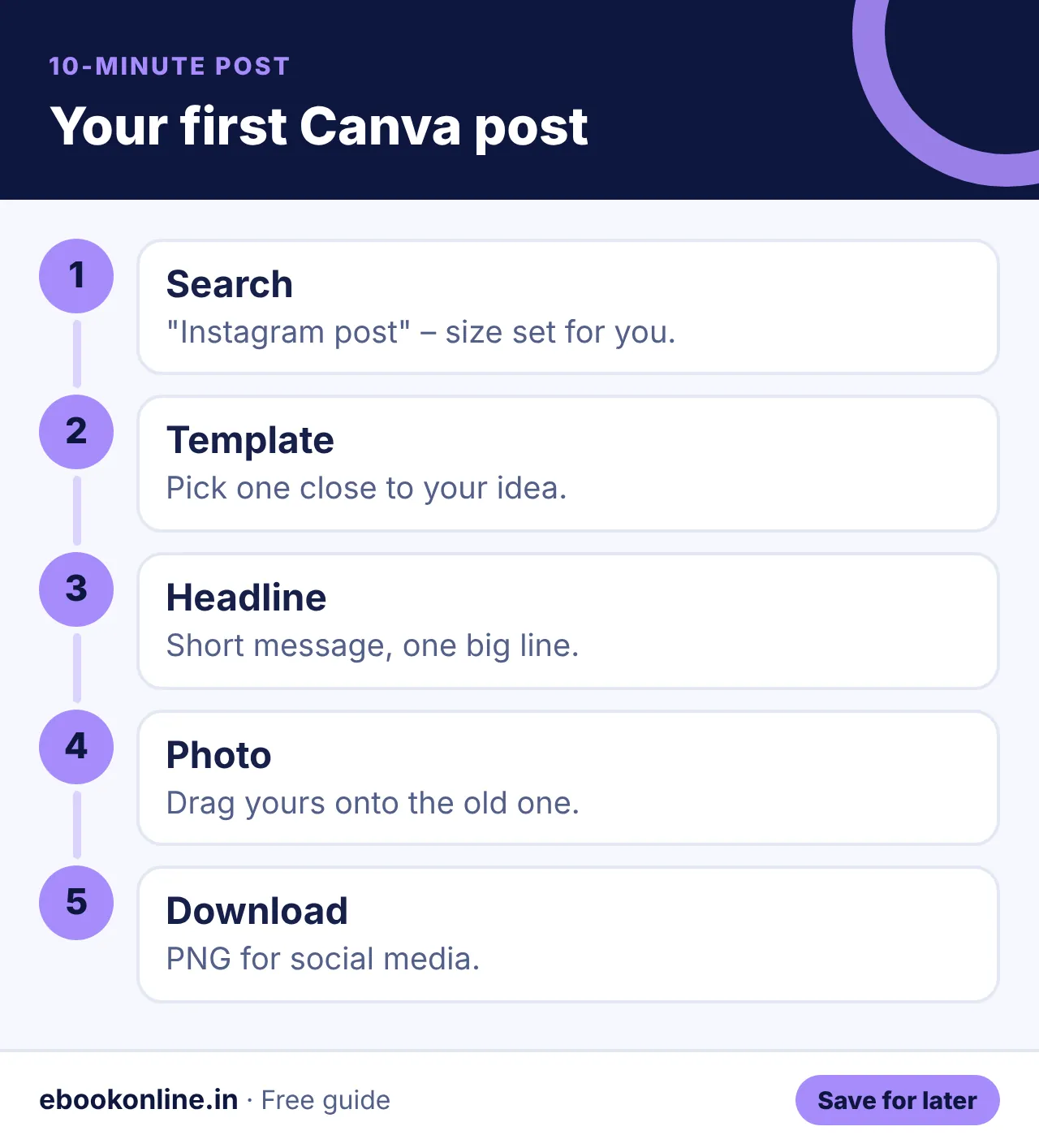
Your first Instagram post in 10 minutes
Show as text
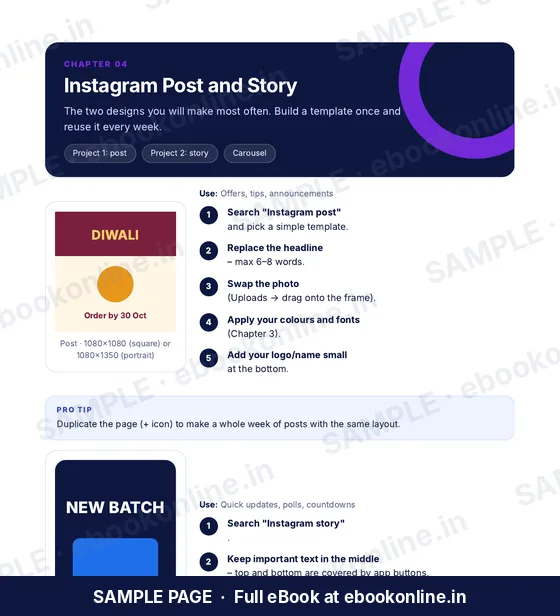
- Open Canva and search "Instagram post".
- Choose a template close to your idea.
- Change the headline to your message – keep it short.
- Replace the photo (drag yours onto the old one).
- Use your brand colours and at most 2 fonts.
- Download as PNG and post.
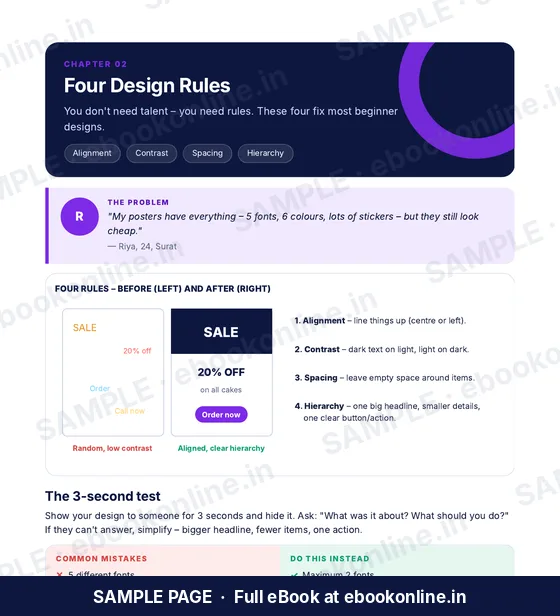
4 design rules that make posts look professional
| Rule | What it means |
|---|---|
| Alignment | Line things up – left or centre, not random |
| Contrast | Dark text on light background, or the reverse |
| Space | Leave breathing room around text |
| Hierarchy | One big headline, smaller details |
Show your design to someone for 3 seconds. If they can't tell you the main message, simplify it.
Make one post now with the 5 steps, then do the 3-second test on a friend.
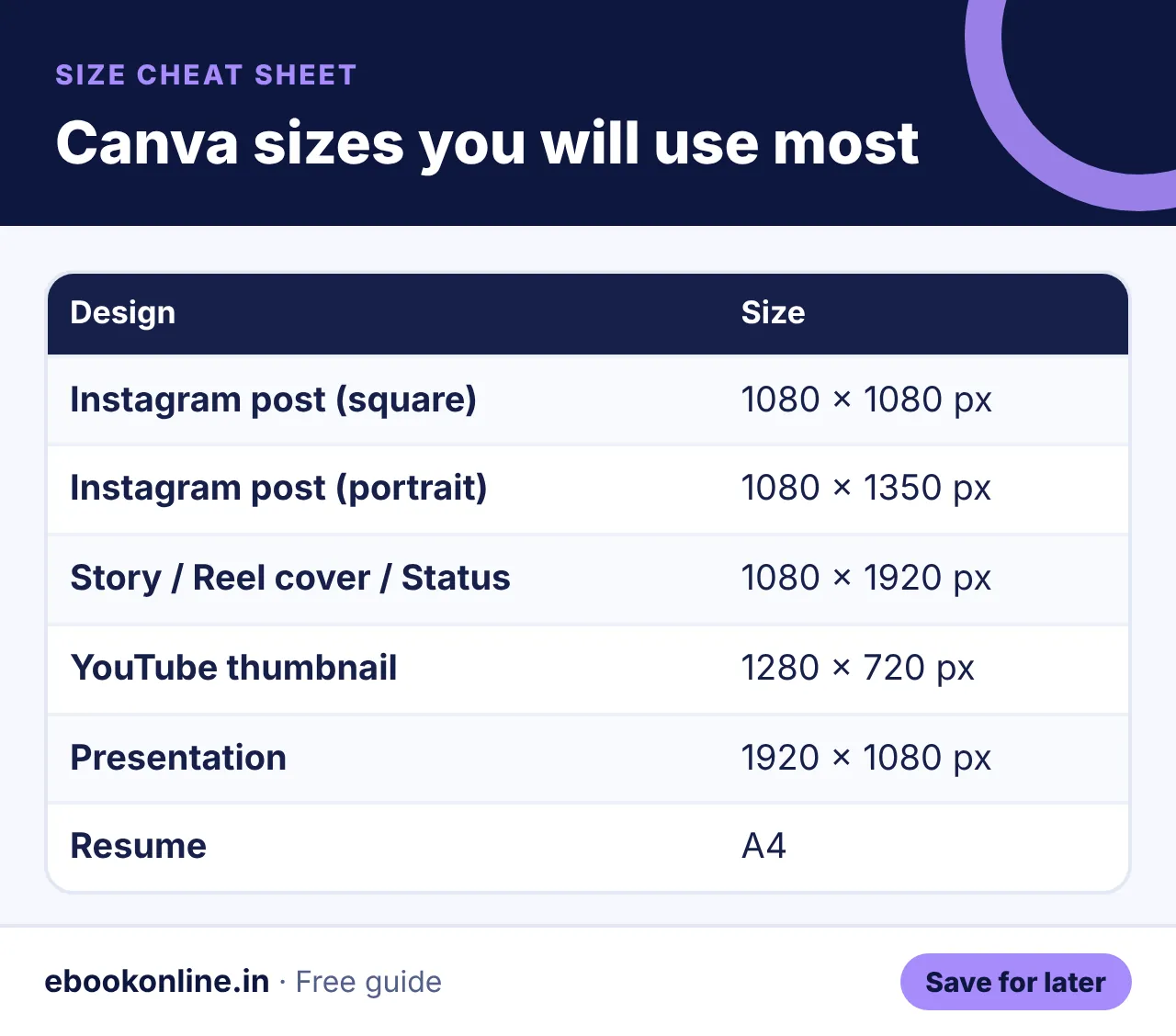
Size cheat sheet
Show as text
| Design | Size |
|---|---|
| Instagram post (square) | 1080 × 1080 px |
| Instagram post (portrait) | 1080 × 1350 px |
| Story / Reel cover / WhatsApp status | 1080 × 1920 px |
| YouTube thumbnail | 1280 × 720 px |
| Presentation | 1920 × 1080 px |
| Logo | 500 × 500 px |
| Resume | A4 |
| Invitation card | 5 × 7 in |
Making thumbnails for a channel? Pair this with our YouTube monetization guide. Designing for clients? Read freelancing for beginners.
Easy font and colour choices
- Pick one bold font for headlines and one simple font for text.
- Choose 3–4 brand colours and save them in Canva.
- Use the same template for a series so your page looks consistent.
Projects to try next
- YouTube thumbnail: face + 3–4 words + strong contrast
- Resume on A4: one page, clean layout, PDF
- Invitation: who, what, when, where, why
- Logo: simple shapes, readable at small size
Grow your page using Instagram growth tips, offer design services via freelancing, and make a better CV with our fresher resume format. More: Mehndi & Design eBooks.
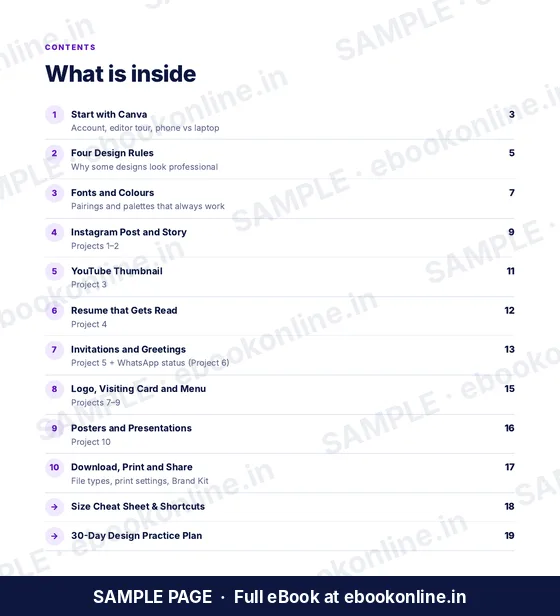
A look inside the eBook: Canva for Beginners
This article covers the basics. The full eBook goes step by step – these are real sample pages from the 20-page PDF. Tap any page to see it bigger.

What you get for ₹99
- 10 step-by-step projects
- 4 simple design rules
- Size cheat sheet
- Start with Canva – Editor tour on phone and laptop.
- Four Design Rules – Why some designs look professional.
- 20-page PDF · read on phone or print at home · instant download after payment
Coming soon.
Frequently asked questions
Is Canva free for beginners?
Yes. Canva has a free plan with many templates. Some elements are paid, but you can make good designs without paying.
What is the best size for an Instagram post?
1080 × 1080 px for square or 1080 × 1350 px for portrait posts.
Can I use Canva on my phone?
Yes. The Canva app works on Android and iPhone, and most features match the laptop version.
How do I download a Canva design for printing?
Choose PDF Print for printers and PNG for social media posts.
Can I sell designs made in Canva?
You can sell your own designs and services, but follow Canva's licence rules for templates and elements.