- Home
- Free guides
- Design
How to Make a YouTube Thumbnail in Canva (Mobile, Step by Step)
A good thumbnail makes people click your video. This guide shows how to make a YouTube thumbnail in Canva using only your phone – the right size, text, colours and upload steps.
- Use the YouTube thumbnail size: 1280×720 pixels (16:9), under 2 MB.
- Write 2–4 big words only – the thumbnail should be readable on a small phone screen.
- Use a clear face photo or object, bright colours and strong contrast.
On YouTube, people decide in a second whether to click your video, and the thumbnail is the first thing they see. You don't need Photoshop or a laptop to make one. In this guide you will learn how to make a YouTube thumbnail in Canva on your phone, step by step, plus the design rules that make thumbnails easy to read.
YouTube thumbnail size and rules
| Setting | Value |
|---|---|
| Size | 1280 × 720 pixels |
| Ratio | 16:9 |
| File type | JPG or PNG |
| File size | Under 2 MB |
To upload a custom thumbnail, your YouTube channel needs to be verified with your phone number. Open YouTube Studio and follow the verification steps if the custom thumbnail option is not showing.
Open Canva, search "YouTube Thumbnail", pick any free template and change only the text to your next video's title in 3 words.
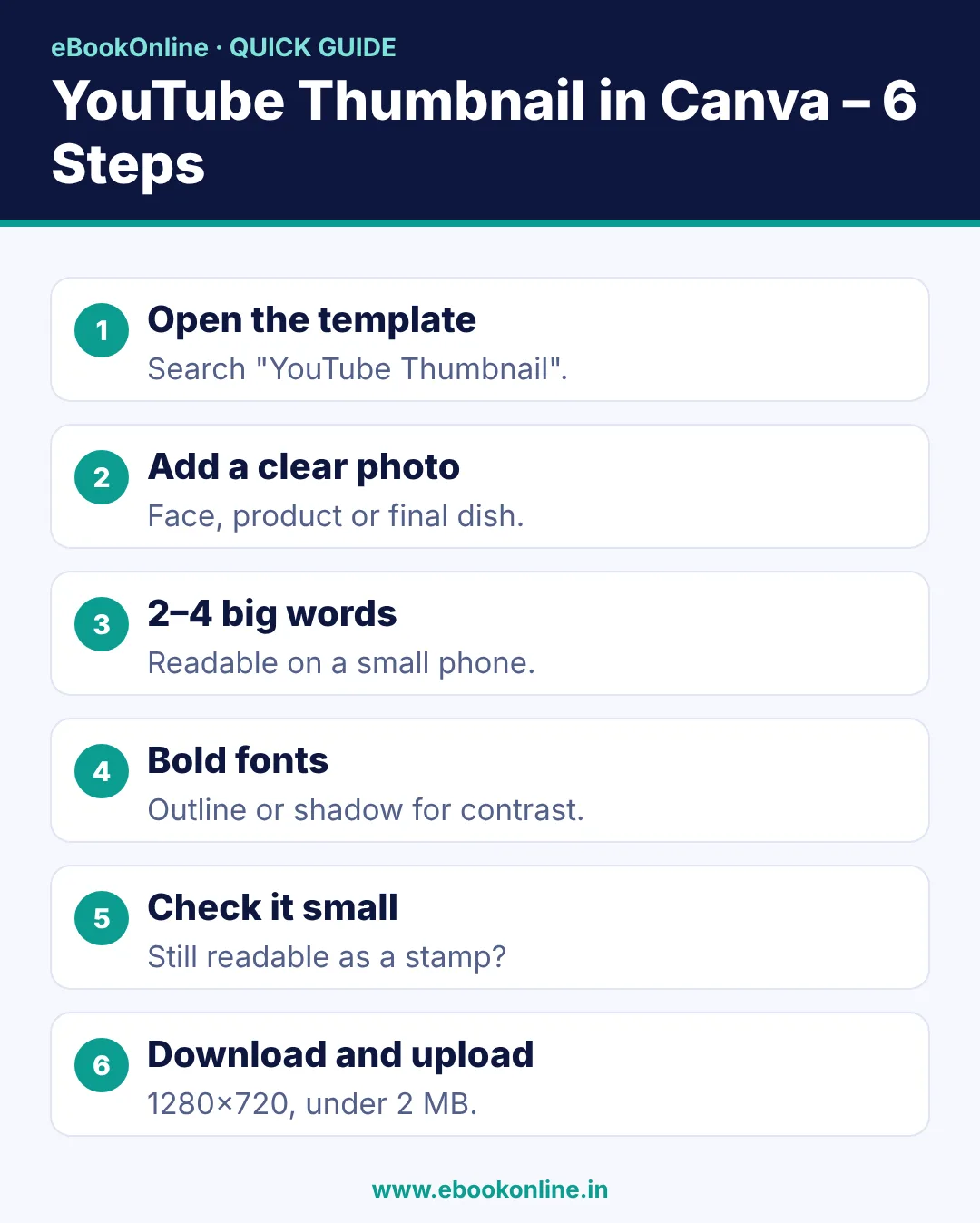
How to make a YouTube thumbnail in Canva: 7 steps
Step 1: Open the YouTube Thumbnail template
Open the Canva app, type "YouTube Thumbnail" in search, and pick a free template. Canva already sets the size to 1280 × 720, so you don't need to change anything.
Step 2: Add your main photo
Tap Uploads and add a clear photo – your face with a strong expression, the product you are reviewing, or the final dish for a cooking video. Use Edit → BG Remover if available in your plan, or pick a photo with a clean background.
Step 3: Write 2–4 big words
Do not copy the full video title. Pick a short hook like "₹99 DINNER", "5 EXCEL TRICKS" or "DON'T DO THIS". Make the text big enough to read on a small phone.
Step 4: Choose bold fonts and colours
- Use thick fonts such as Anton, Bebas Neue, Montserrat ExtraBold or Poppins Bold.
- Add an outline or shadow so the text stands out.
- Use contrast: yellow or white text on a dark background, or black text on yellow.
Step 5: Add one simple element
An arrow, a circle, a "before/after" split or an emoji-style sticker can guide the eye. Use one, not five – too many elements look messy.
Step 6: Check it small
Zoom out until the thumbnail is the size of a stamp on your screen. If you can still read the words and see the face, it works. If not, make the text bigger and remove clutter.
Step 7: Download and upload
Tap Share → Download → PNG or JPG. If the file is over 2 MB, choose JPG. In the YouTube Studio app, open your video, tap Edit → Edit thumbnail → Custom thumbnail, choose your image and save.
6 tips for thumbnails people click
- One clear idea: the thumbnail should show the result or promise of the video.
- Faces work: a clear expression (surprise, happy, thinking) catches attention.
- Bright, simple backgrounds: avoid busy photos behind text.
- Same style every time: use the same fonts and colours so viewers recognise your channel.
- Be honest: the thumbnail must match the video. Misleading thumbnails can bring complaints and lose viewers' trust.
- Don't repeat the title: the thumbnail and title should work together, not say the same words.
Common mistakes
- Writing the whole title on the thumbnail.
- Small or thin fonts that disappear on mobile.
- Dark, blurry or low-light photos.
- Using images you don't have rights to – use your own photos or Canva's free library.
- Placing important text in the bottom-right corner, where YouTube shows the video length.
Make a thumbnail template for your channel
Once one thumbnail looks good, save time: in Canva, tap Copy on the design and only change the photo and text for each new video. Your channel will look consistent and professional.
Want to understand how YouTube earnings work? Read YouTube monetization rules in India. New to Canva tools? Start with how to make an Instagram post in Canva. For a full channel growth plan, see our YouTube earning eBook.
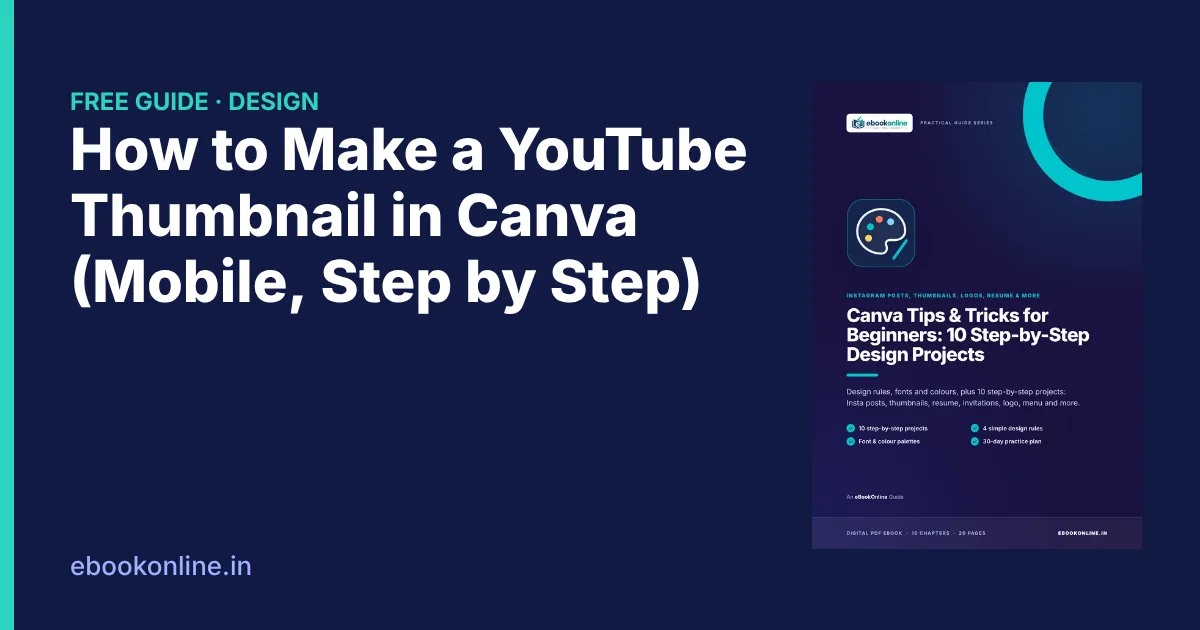
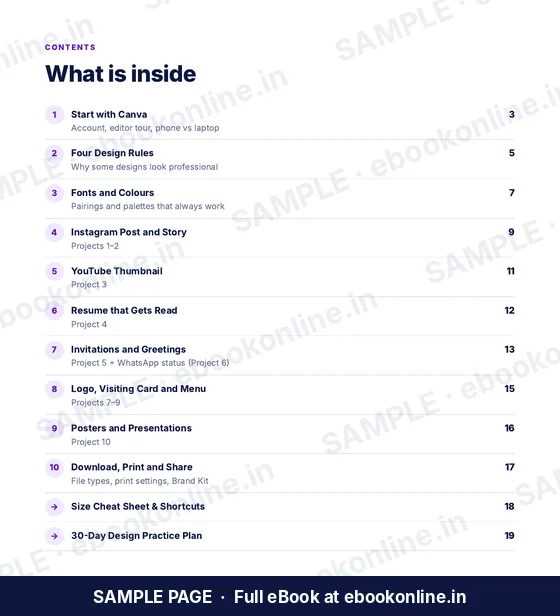
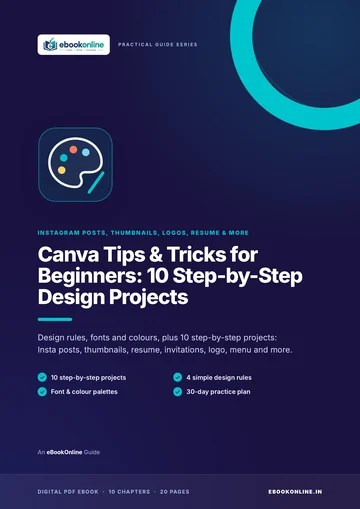
A look inside the eBook: Canva Tips & Tricks for Beginners: 10 Step-by-Step Design Projects
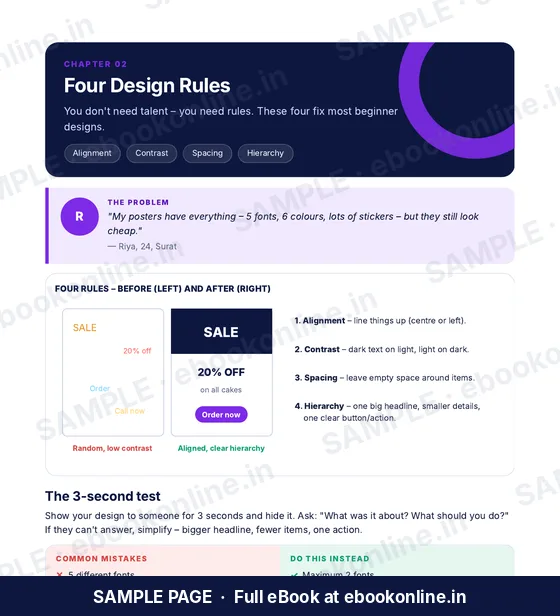
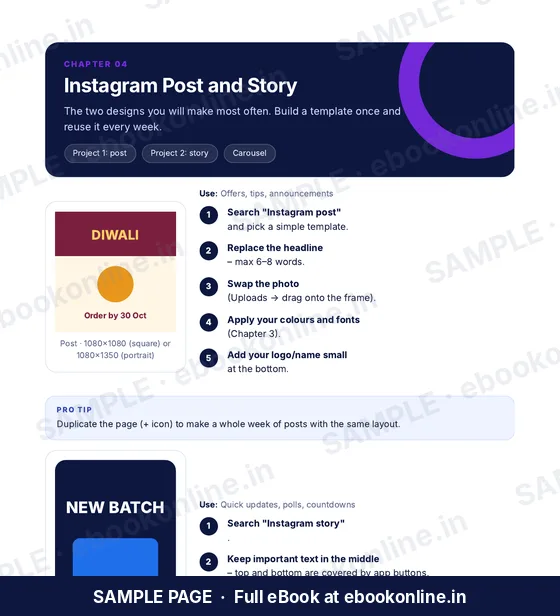
This article covers the basics. The full eBook goes step by step – these are real sample pages from the 20-page PDF. Tap any page to see it bigger.
What you get for ₹99
- 10 step-by-step projects
- 4 simple design rules
- Size cheat sheet
- Start with Canva – Editor tour on phone and laptop.
- Four Design Rules – Why some designs look professional.
- 20-page PDF · read on phone or print at home · instant download after payment
Coming soon.
Frequently asked questions
What is the correct YouTube thumbnail size?
1280 × 720 pixels in a 16:9 ratio, saved as JPG or PNG and under 2 MB.
Can I make a YouTube thumbnail in Canva for free?
Yes. Canva has many free YouTube Thumbnail templates and works on mobile and laptop.
Why can't I upload a custom thumbnail on YouTube?
Your channel needs phone verification for custom thumbnails. Complete verification in YouTube Studio, then try again.
How many words should a thumbnail have?
Keep it to 2–4 big words. The thumbnail must be readable on a small phone screen.
Which font is best for YouTube thumbnails?
Thick, bold fonts like Anton, Bebas Neue, Montserrat ExtraBold or Poppins Bold, with an outline or shadow for contrast.